

Table of Contents
MyAffiliates gives affiliates one clear place to manage daily campaign work. Inside the platform, affiliates can track traffic, review reports, find marketing tools, check finance details, update account settings, and contact support when needed. Approved affiliates can access MyAffiliates with their username and password.
Affiliates in our iGaming affiliate program can be confident they are working with world-class software. MyAffiliates is one of the best iGaming affiliate marketing software platforms because it keeps tracking, reporting, marketing, finance, account, and support tools in one clear dashboard.
This guide walks through the main sections available in MyAffiliates. The platform is split into Home, Reports, Marketing, Finances, Account, and Support. Each section has a specific purpose.
Home gives a quick snapshot of activity. Reports help affiliates review customer and traffic data. Marketing gives access to banners, direct links, landing pages, and media code. Finances helps affiliates review earnings and payment details. Account covers profile and security settings. Support gives affiliates a place to manage tickets.
By understanding each section, affiliates can use MyAffiliates with more confidence. It also helps keep campaign checks simple and organized.
MyAffiliates Dashboard
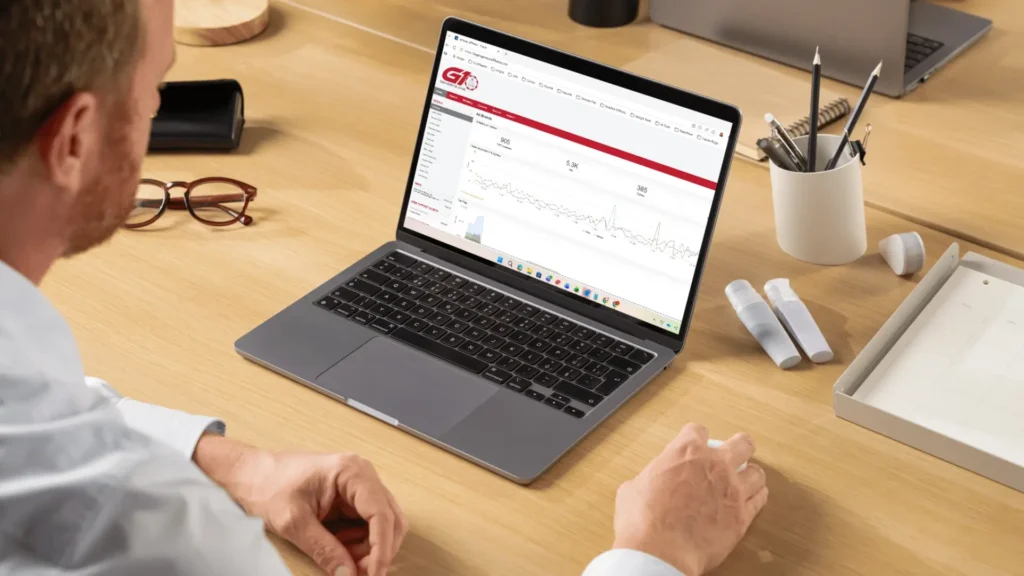
The MyAffiliates dashboard gives affiliates a fast view of account activity. It starts with the “Statistics at a glance” area, where affiliates can check Total Customers, Hits, Signups, and Commission. These numbers help affiliates see how their traffic is moving before opening deeper reports.
The dashboard also includes simple date filters. Affiliates can switch between Today, Yesterday, This month, Last month, and This year. This makes it easier to compare recent activity with wider campaign performance.
Below the main stats, MyAffiliates shows a graph for clicks, impressions, and signups. There is also an earnings graph and a live visits area, which helps affiliates see current activity. The side widgets add more useful account information, including News, Open Support Tickets, Payment Summary, and Payment Instructions.
The dashboard is a useful starting point. It helps affiliates decide which report to check next.
Reports
The Reports section is where affiliates can look deeper into campaign performance. While the dashboard gives a quick view, Reports gives more detail across traffic, customers, registrations, earnings, clicks, and campaign quality.
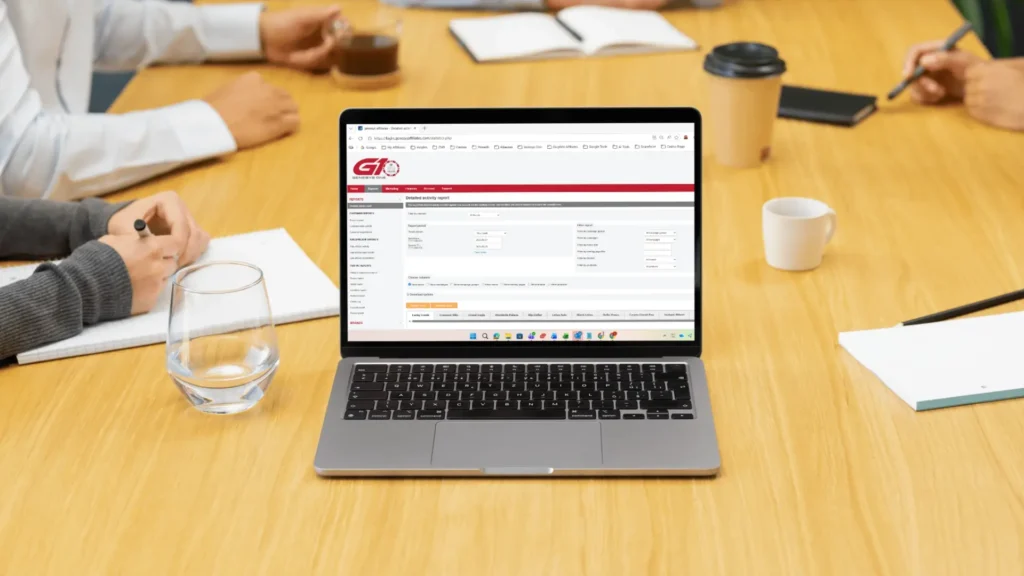
The Reports menu includes the Detailed activity report, Customer Reports, Sub-affiliate Reports, and Traffic Reports. These areas help affiliates review different parts of their activity without relying on one data view.
Most report pages in MyAffiliates use similar filters. Affiliates can filter by channel or brand, preset period, date from, date to, campaign group, campaign, media IDs, landing page IDs, brands, products, and country. Some reports also include an Exclude robots option, which helps clean up traffic data.
Once the filters are selected, affiliates can use the Display Report button to view results. They can also use Download Report to save the data for later checks or campaign reviews.
Customer Reports
Customer Reports help affiliates review customer activity linked to their account. This section includes three report options: Player Activity, Customer daily activity, and Customer registrations. Each one helps affiliates understand what happens after traffic reaches the offer.
The Player Activity report lists detailed activity per customer belonging to the affiliate account. Affiliates can use filters to limit customers by their registration details. These filters include campaign group, campaign, media IDs, landing page IDs, brand, and join date. There is also an option to group results by customer, which helps keep the report easier to review.
Customer registration details can include join date, campaign, media, join country, referring URL, and payload. This gives affiliates a clearer view of where customers came from. It also helps them compare campaigns by more than clicks alone. As a result, Customer Reports help affiliates judge customer quality.
Traffic Reports
Traffic Reports help affiliates understand where clicks come from and how users move through campaigns. This section includes the Clicks & impressions report, Device report, Media report, Countries report, Referrer report, Clicks Log, Payload report, and Funnel report.
The Clicks & impressions report shows impressions, hits, click-through ratio, click reach, and click frequency. This helps affiliates compare traffic activity across different campaigns. The Device report shows device name, device type, whether the device is mobile, clicks, click reach, and click frequency. This helps affiliates see how users are accessing their links.
The Countries report includes a map and country data. The Referrer report shows referring URLs, which helps affiliates see where visits started. The Clicks Log gives detailed click records. The Funnel report shows conversion movement from hits to click reach, signups, and first deposits.
Marketing
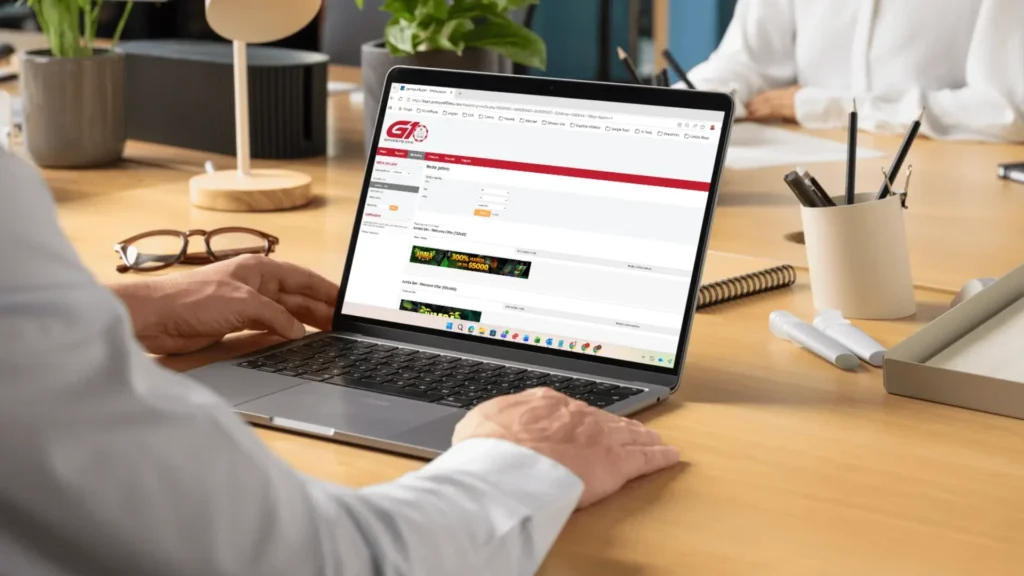
The Marketing section is where affiliates find creative tools and tracking links inside MyAffiliates. This area gives affiliates access to the Media Gallery, which keeps promotional material in one place.
The Media Gallery includes All media, Banners, Direct links, and Offline codes. These categories help affiliates find the right material faster, whether they need a banner, a tracked link, a landing page, or media code.
Affiliates can also use filters to narrow the results. The available filters include Geo, Size, Other, and Media ID search. In this section, Other is used as the brand filter. This helps affiliates find creative material for the correct brand or campaign.
The sidebar also includes Campaigns. Campaigns allow affiliates to track and report traffic sources separately. This helps keep performance data clearer. So, the Marketing section connects promotional material with tracking.
Banners
Banners are found inside the Media Gallery in MyAffiliates. They give affiliates ready creative material for websites, blogs, review pages, email placements, and other campaign spaces.
Affiliates can filter banners by geo, size, brand, and other media details. In the Media Gallery, the Other filter is used for brand selection. This makes it easier to find banners that match the offer, brand, and traffic source.
Each banner can show View media, Get media code, and Media information. Before getting the banner code, affiliates can also apply a campaign. This helps connect the banner to the right campaign tracking.
The media code area includes JavaScript code that affiliates can place on their site. The banner section also shows a landing page URL. Affiliates should choose banners that match the offer, brand, page topic, and traffic source.
Direct Links (Landing Pages)
Direct Links are found inside the Marketing section in MyAffiliates. They help affiliates send traffic to specific landing pages instead of a general page.
The Direct Links page lists landing pages by Channel, Landing page, and Media. These pages can be linked to brand offers, welcome offers, crypto offers, and promotional pages. This gives affiliates a more direct path for each campaign.
Affiliates can filter Direct Links by Geo, Size, and Other. In this section, Other is used as the brand filter. This helps affiliates find the right landing page for the right brand or offer.
Direct Links are useful for review buttons, text links, banners, emails, and social campaigns. They help send traffic to a more relevant destination. Affiliates should always use the correct tracked direct link.
Finances
The Finances section is where affiliates review commission and payment-related information in MyAffiliates. This area helps affiliates check what has been earned, what has been recorded, and which payment details are on file.
The Finances menu includes Financial statement, Earnings report, and Payment instructions. These pages give affiliates a clearer view of the money side of their account. They should be checked often, especially when reviewing campaign results.
The finance pages use report period filters, including preset period, date from, and date to. Affiliates can select a period, display the report, and download the report for their own records.
Finance reports should be checked together with traffic and customer reports. This helps affiliates understand where earnings are coming from. It also helps connect campaign activity with the commissions shown inside MyAffiliates.
Financial Statement
The Financial Statement lists commissions earned, payments made, and manual adjustments. It gives affiliates a finance summary for a selected period.
This page includes report period filters for preset period, date from, and date to. Once the period is selected, affiliates can use Display Report to view the results. They can also use Download Report to save the data.
The Financial Statement is useful when checking balances, payment history, and manual adjustments. It helps affiliates review account movement over time and compare finance records with other reports.
In some cases, the page may show no transactions. This simply means there is no matching data for the selected criteria. Affiliates can adjust the report period and check again.
For quick finance checks, the Financial Statement gives the main summary view.
Earnings Report
The Earnings Report shows the commission earned for the affiliate’s channels. It helps affiliates see how earnings changed across a selected period.
When data is available, the report includes a graph. This gives affiliates a visual way to review earnings movement. The page also includes a note about red axis markers. These markers show an adjustment caused by a transaction. Affiliates can refer to the Financial Statement for more detail about that transaction.
The Earnings Report uses the same report period filters, including preset period, date from, and date to. Affiliates can display the report inside MyAffiliates or download it for later review.
This report is most useful when checked with traffic and customer reports. That helps affiliates connect earnings with campaign performance, clicks, signups, and customer activity.
Payment Instructions
Payment Instructions shows the affiliate’s current payment method and payment details. This page helps affiliates check how payments are set up inside MyAffiliates.
The page can show the current payment method, currency of bank account, bank account number, recipient full name, intermediary banking details, IBAN, bank name, SWIFT code, and payment threshold. These details help confirm where affiliate payments should be sent.
Affiliates can use the Change Payment Instructions button when payment details need to be updated. However, payment information should always be entered carefully. Incorrect details may delay or affect payments.
Some values may also show as pending approval. This means the update has not been fully approved yet.
Affiliates should keep this page accurate and up to date. Payment Instructions gives a clear view of the payment setup linked to the account.
Account
The Account section is where affiliates manage account details and security options inside MyAffiliates. This area includes Account details, Edit account details, Login history, and Authorization.
Account Details gives affiliates a view of the main information linked to their profile. This can include email address, email subscription status, country, name, phone number, company name, website URL, marketing type, Telegram contact, and terms status. These details help keep the affiliate account accurate.
Edit Account Details lets affiliates update contact details and password fields when needed. Affiliates can also enable two-factor authentication for extra account security.
Login History shows recent successful logins and IP addresses. This helps affiliates check account access. The Authorization section includes two-factor authentication, Basic Authorization, and OAuth2 Clients.
Affiliates should keep their account data current and secure.
Support
The Support section is where affiliates manage support tickets inside MyAffiliates. This area gives affiliates a direct place to ask for help with account, tracking, reporting, payment, or marketing tool questions.
The Support menu includes Create a ticket, Unresolved tickets, and Resolved tickets. Create a ticket lets affiliates submit a new request. Unresolved tickets shows open support requests that still need attention. In the screenshot example, no tickets were found. Resolved tickets can be used to review past support conversations.
This section is useful when affiliates need help checking tracking links, reading reports, updating account details, reviewing payment information, or finding marketing material.
When creating a ticket, affiliates should include clear details. A short explanation, the related page, and any needed campaign information can help support teams respond faster.
MyAffiliates FAQs
These MyAffiliates FAQs cover the main questions affiliates may have when using the platform. They explain where to find reports, banners, direct links, finance details, account settings, and support tools. Use this section as a quick reference when reviewing the main dashboard areas.
What is MyAffiliates?
MyAffiliates is an affiliate platform used to manage tracking, reports, marketing tools, finance data, account details, and support. Affiliates can use it to check campaign activity, review customer and traffic data, access promotional material, manage payment information, and keep their account details updated. More details are available on the official website.
What can affiliates do inside MyAffiliates?
Inside MyAffiliates, affiliates can check dashboard stats, view reports, find banners, use direct links, review earnings, manage account details, and contact support. The platform keeps important affiliate tools in one place, making it easier to track campaign performance and manage daily affiliate activity.
What does the MyAffiliates dashboard show?
The MyAffiliates dashboard shows Total Customers, Hits, Signups, and Commission. It also includes clicks, impressions, signups, earnings, and live visits. Affiliates can also see News, Open Support Tickets, Payment Summary, and Payment Instructions, giving them a quick view of account activity.
What are Customer Reports used for?
Customer Reports help affiliates review customer activity linked to their account. These reports include Player Activity, Customer daily activity, and Customer registrations. Affiliates can use them to check registrations, review customer movement, and better understand which campaigns are bringing in valuable customer activity.
What are Traffic Reports used for?
Traffic Reports help affiliates review clicks, impressions, devices, media, countries, referrers, click logs, payload data, and funnel movement. These reports show how users reach offers and landing pages. They also help affiliates compare traffic sources, campaign placements, and user behavior.
Where can affiliates find banners?
Affiliates can find banners in the Marketing section under Media Gallery. Banners can be filtered by geo, size, brand, and other media details. Affiliates can also view media, get media code, check media information, and apply a campaign before using the banner code.
What are Direct Links in MyAffiliates?
Direct Links are tracked landing page URLs inside MyAffiliates. They help affiliates send users to a specific brand, offer, or campaign page. Affiliates can use Direct Links for review buttons, text links, banners, emails, and social campaigns while keeping tracking connected to their account.
What does the Financial Statement show?
The Financial Statement lists commissions earned, payments made, and manual adjustments. Affiliates can use it to review finance activity over a selected period. It is useful for checking account movement, payment history, balances, and any adjustments recorded inside MyAffiliates.
What is the Earnings Report used for?
The Earnings Report shows commission earned for affiliate channels during a selected period. Affiliates can use it to review earnings movement and compare performance over time. It works best when checked together with traffic reports and customer reports.
What does Payment Instructions show?
Payment Instructions shows the current payment method and payment details linked to the affiliate account. This can include banking details, currency, SWIFT code, IBAN, recipient name, and payment threshold. Affiliates should keep this section accurate to avoid payment issues.